
List and ship with AI Operator in InventoryLab
In this guide, you'll learn:
-
What product and packing information to prepare before getting started.
-
Where to review shipment details and placement options before purchasing shipping.
-
Which prompts to use to create your batch and move through Box It and Ship It.
-
How to request product, box, and shipping labels at the right stages of your shipment workflow.
Prepare your shipment details
The example below follows the small parcel delivery (SPD) workflow for Fulfillment by Amazon (FBA). It uses three products, their unit quantities and buy costs, and a separate box breakdown for each product.
Gather the details below, then check off each item as you go.
Download saves an interactive HTML copy with your current checkmarks. Open it in your browser to keep using it. For a PDF, choose “Save as PDF” in the print window.
Build your shipment, one prompt at a time
1. Create your batch and request product labels
Starting with product details?
Create an SPD FBA batch with these asins:
B00QLFPJIQ 50 units $5 cogs,
B07TGFJ1N8 40 units $10 cogs,
B07D1DVD97 30 units $15 cogs
Give me the fnsku labels.
Replace the example ASINs, quantities, and buy costs with your own shipment details before sending.
Have a buy list? Use this prompt:
Import this buy list into InventoryLab.
-
PRO TIP: Review the batch details against the products you plan to send. Check each product’s quantity and buy cost before continuing to packing.
2. Provide your box details
Go to Box It. These are my box details:

B00QLFPJIQ: 5 boxes, 10 units in each box, 12 × 12 × 12, 10 lb per box.

B07TGFJ1N8: 4 boxes, 10 units in each box, 12 × 12 × 12, 10 lb per box.

B07D1DVD97: 3 boxes, 10 units in each box, 12 × 12 × 12, 10 lb per box.
Replace the example ASINs and packing details with your own. Include the measurement unit for your box dimensions.
-
PRO TIP: Don’t leave measurement units out. When entering box dimensions, specify whether you’re using inches or centimeters rather than providing numbers alone. Include the unit for box weight, too, so your packing details are clear before you continue.
3. Review your placement options
Go to Ship It. Give me the Amazon placement options.
Keep this as a separate step from purchasing shipping. You can review the options first, then send your choice in the next prompt.
-
PRO TIP: Keep this as a separate step from purchasing shipping. You can review the options first, then send your choice in the next prompt.
4. Choose an option and purchase shipping
Let’s choose the cheapest option and purchase shipping.
This prompt requests a shipping purchase. Review the placement option and cost before sending.
-
PRO TIP: This prompt requests a shipping purchase. Review the option and cost before sending it, and check AI Operator’s response for the purchase result or any further information it needs.
5. Request your box and shipping labels
Give me the box labels and shipping labels.
-
PRO TIP: Check that the returned labels correspond to the shipment you’ve just worked through. Keep the product labels, box labels, and shipping labels clearly identified as you prepare your inventory.
Optional: See what’s still in progress
Show me all open InventoryLab batches with their current stage, status, and estimated profit.
-
PRO TIP: Use the returned table to review where each batch stands and decide which one to work on next. Treat the profit figure as an estimate, as specified in the prompt.
Explore more InventoryLab Prompts
Get help with packing
Prompt to use:Help me box my items ready to ship to Amazon.
Open packing promptCheck missing batch details
Prompt to use:Which open batches have missing costs, suppliers, or purchase dates?
Open missing-details promptReview recent profitability
Prompt to use:Give me a profitability breakdown for the last 30 days and tell me what stands out.
Open profitability promptFAQs
Do I send the whole workflow as one prompt?
Can I change quantities or packing details after creating the batch?
Can I pack different ASINs in the same box using this workflow?
What does the fulfillment center lost-rate data tell me, and how should I use it when choosing a placement option?
Make your next shipment easier to follow
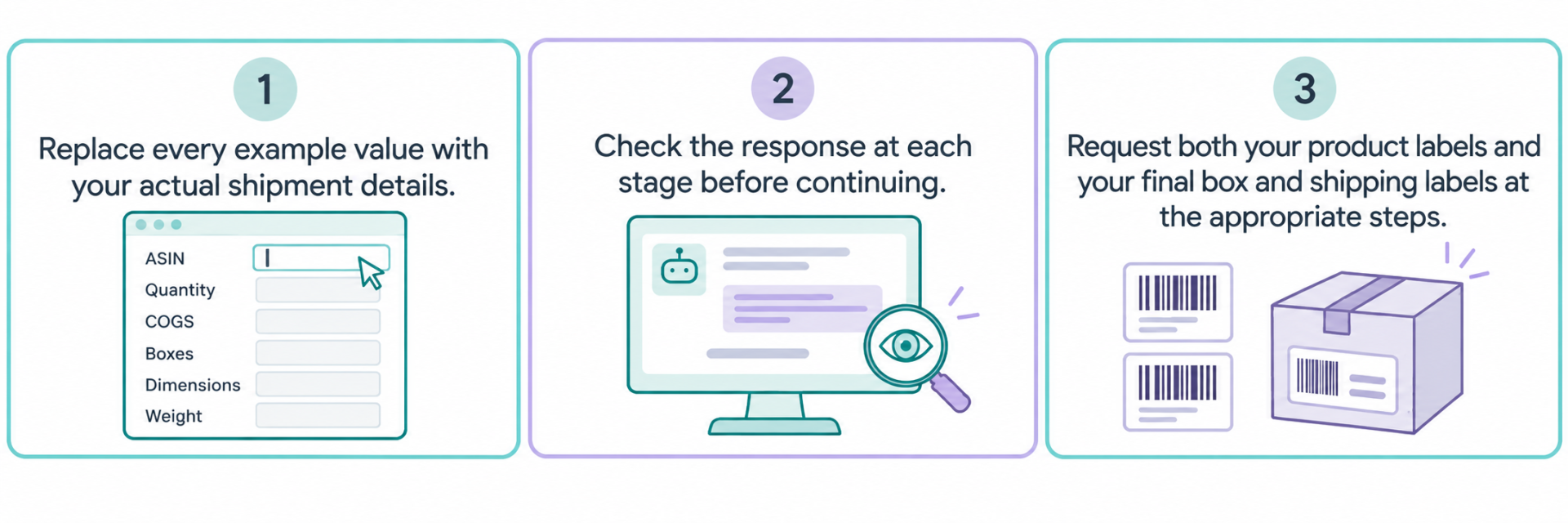
For your next shipment, remember these three points:
Ready to put the workflow into practice?
Open AI Operator with your shipment details ready and start with the batch-creation prompt above!