Product Searchis one of the main workflows inside Tactical Arbitrage. It helps you scan a source website, review products in a selected category, and compare those products against Amazon so you can look for profitable resale opportunities.
Instead of manually checking hundreds of product pages, you can build a repeatable scan that automatically compares retail listings against Amazon data.
In this guide, you’ll learn how to set up your first Product Search scan in Tactical Arbitrage, choose the right categories and filters, and build a repeatable workflow for finding profitable Amazon resale opportunities.
Prefer to watch? Check out this video on TA's Product Search
Start with your market settings
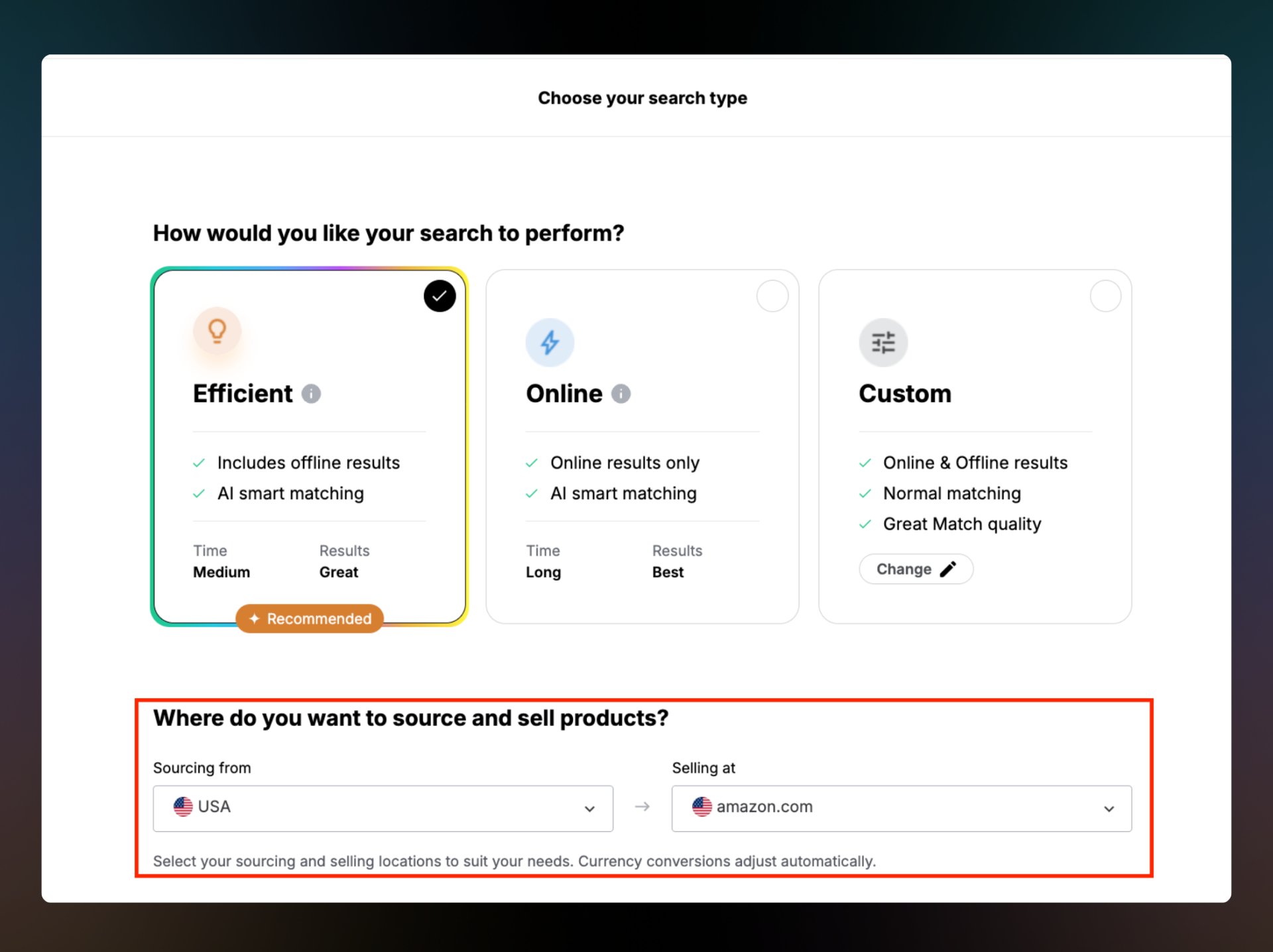
Before you build a scan, confirm:
The region you are sourcing from
The Amazon marketplace you want to compare against
For example, you might source from US retail sites and compare products against Amazon.com. If you source from another supported region, compare products against the matching Amazon marketplace.
These settings affect:
Source pricing
Marketplace data
Fees
Product availability
Good deal only works if the source price, marketplace data, fees, and availability line up with your selling plan. Check these settings first so the scan is built around the market you actually plan to use.
Good deal only works if the source price, marketplace data, fees, and availability line up with your selling plan. Check these settings first so the scan is built around the market you actually plan to use.
Choose a source website and category
Next, choose the source website you want Tactical Arbitrage to scan. Product Search is designed around retail site categories, so a clean category choice helps the scan return more relevant results.
You can add categories in two common ways: use the built-in category picker or paste direct category URLs.
1# Use the Category Picker
The category picker is often the easiest way to start building a scan.
Choose a source website
Open the category dropdown.
Select a main category, such as Beauty, Toys, Grocery, or another supported retail category.
Add any relevant subcategories to the bulk list.
Adding multiple subcategories lets you scan several related pages in one search instead of creating separate scans for each category.
Pro Tip: Keep your category list focused. Larger scans take longer to run and can be harder to review. If you're new to Tactical Arbitrage, start with a smaller category group so you can learn what strong opportunities and false positives look like.
#2 Paste direct category URLs
You can also scan specific category pages by copying the page URL from a retail website and pasting it into Tactical Arbitrage.
This approach works well when you already know which section of a website you want to search. You can also paste multiple URLs into the search field, with each URL on its own line, to include several targeted pages in a single scan.
Pro Tip: Use direct category URLs when you want tighter control over what gets scanned. This can help reduce irrelevant results and make scans easier to review.
Read this guide to avoid getting irrelevant results when scanning with category URLs.
Name the scan before you run it
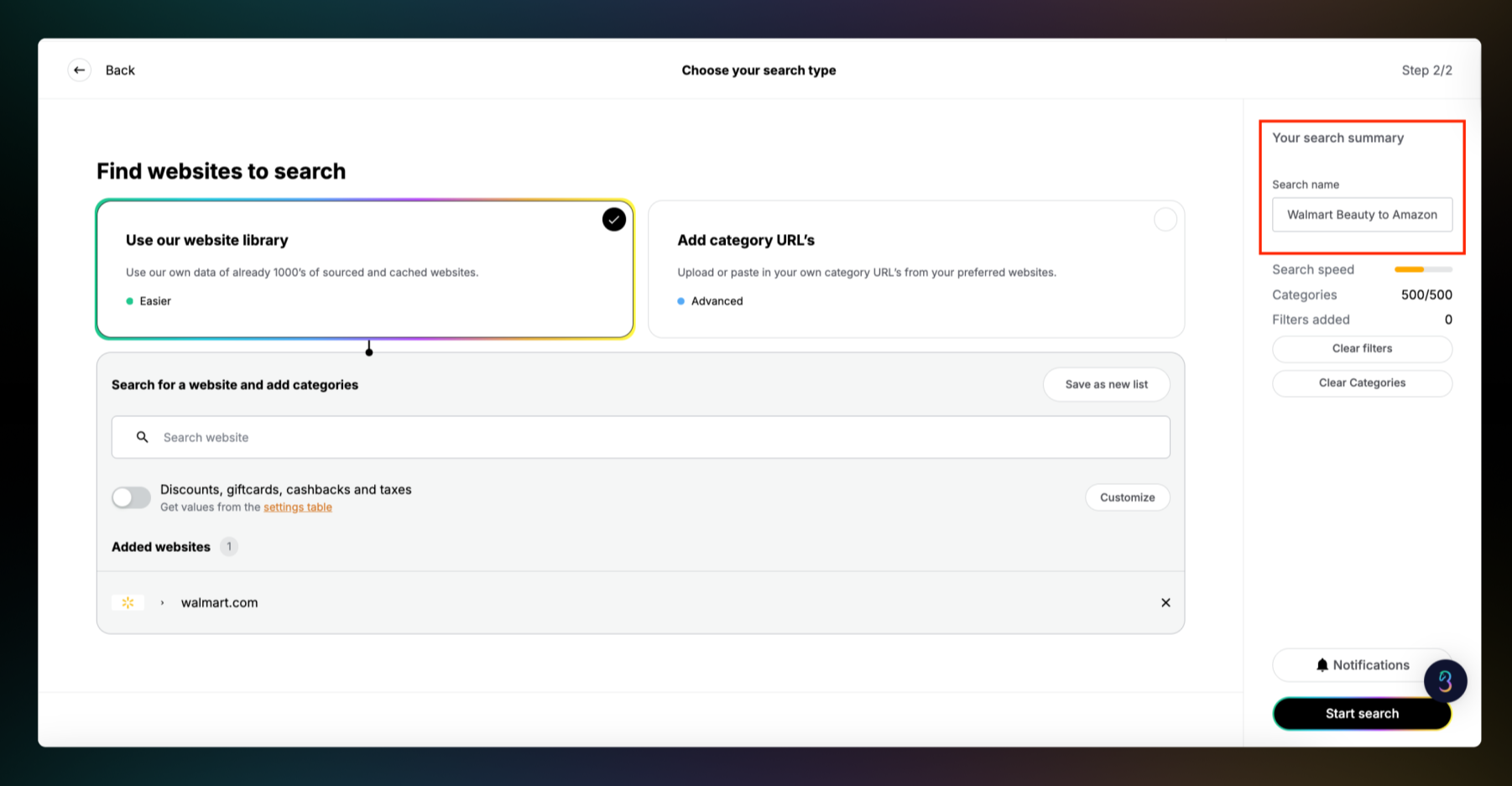
Before you click Search, give the scan a clear name. This small habit makes your search history much easier to use later.
A useful scan name usually includes the source site, category, marketplace, and date or goal. Here are a few examples:
Walmart Beauty to Amazon US
Target Toys Q4 Test
Clear names help when you return to your results page, compare different searches, or repeat a scan with adjusted filters.
Use filters to control the results
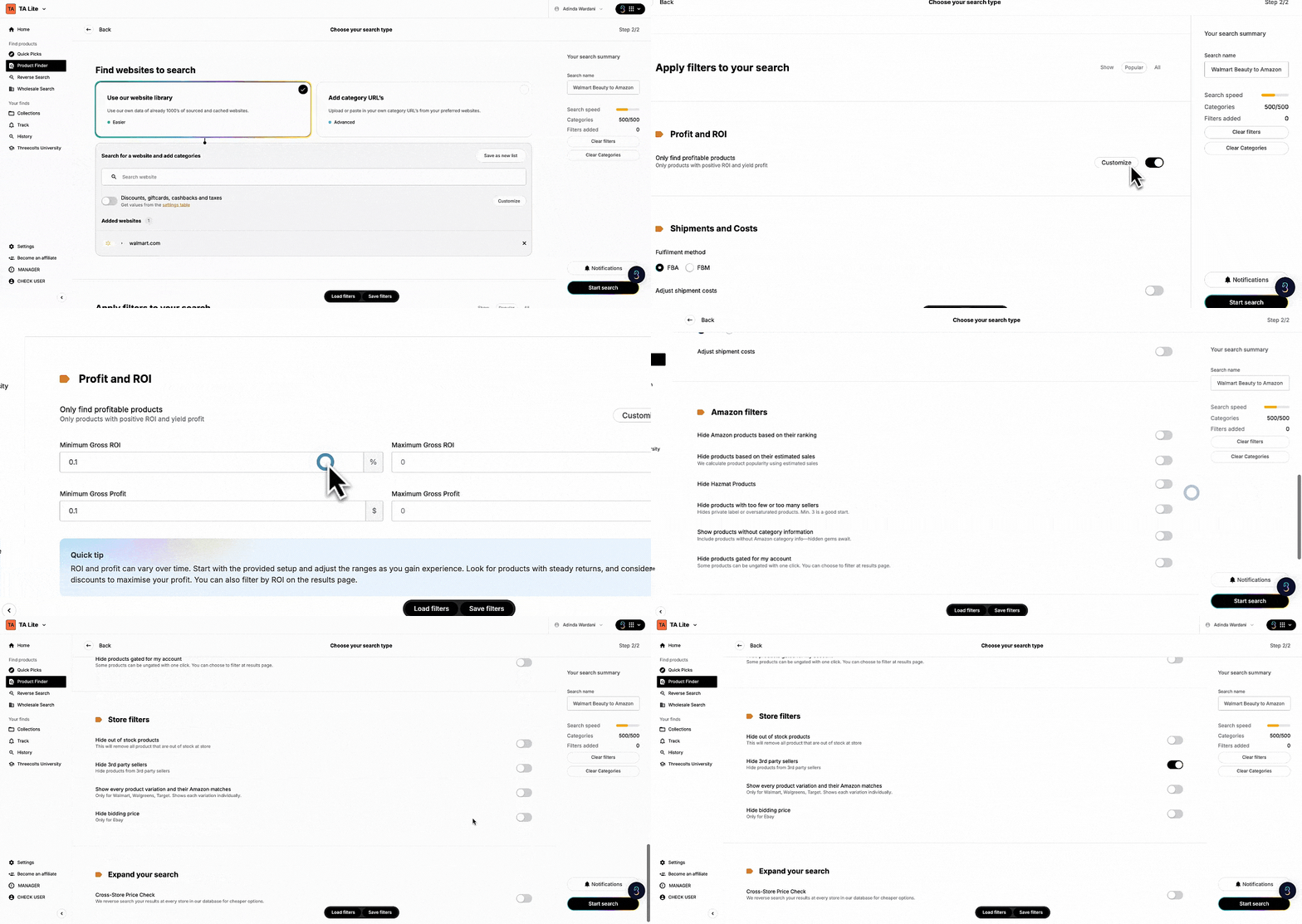
Tactical Arbitrage includes many filters, and they can feel overwhelming at first. You do not need to master every setting before running your first scan.
If you are new, start with the beginner filter setup in your account. A starter filter gives you a safer baseline so you are not reviewing every possible match from a large retail category.
As you get more comfortable, adjust filters based on your sourcing strategy.
For example, once you understand what your best leads usually look like, you might select:
Tighten profit
Return on investment
Sales rank
Competition settings
Common mistakes to avoid
Keep an eye out for these common mistakes:
Running a huge scan before you understand how to review the results.
Forgetting to name the scan, then struggling to find it later.
Mixing too many unrelated categories into one search.
Turning filters too tight too early and missing useful leads.
Leaving filters too broad and creating an overwhelming result list.
Key Takeaways
Product Search is the core Tactical Arbitrage workflow for scanning retail categories and comparing products against Amazon.
You can build a scan by choosing your sourcing region, Amazon marketplace, source website, and product categories or URLs.
Clear scan names, beginner-friendly filters, and email notifications make it easier to manage searches without staying at your computer.
Final tip
Start your next Product Search with a focused category and a clear scan name. Use Tactical Arbitrage to compare retail products against Amazon and build a repeatable sourcing workflow.
Have more questions? Book a 1:1today to learn more!
Login or create your dedicated Threecolts University accountLogin to start learning
Start learning
or
Create your dedicated Threecolts University account!